

 How do I undo the most recent local commits in Git?
I accidentally committed the wrong files to Git [1] but haven't pushed the commit to the server yet.
How do I undo those commits from the local repository?
 ACCEPTED]
$ git commit -m "Something terribly misguided" # (0: Your Accident)
$ git reset HEAD~                              # (1)
# === If you just want to undo the commit, stop here! ===
[ edit files as necessary ]                    # (2)
$ git add .                                    # (3)
$ git commit -c ORIG_HEAD                      # (4)
git reset
[1] is the command responsible for the undo. It will undo your last commit while leaving your working tree (the state of your files on disk) untouched. You'll need to add them again before you can commit them again.
git add
[3] anything that you want to include in your new commit.reset copied the old head to .git/ORIG_HEAD;
commit
with
-c ORIG_HEAD
[4] will open an editor, which initially contains the log message from the old commit and allows you to edit it. If you do not need to edit the message, you could use the
-C
[5] option.Alternatively, to edit the previous commit (or just its commit message),
commit --amend
[6] will add changes within the current index to the previous commit.
To remove (not revert) a commit that has been pushed to the server, rewriting history with git push origin main --force[-with-lease] is necessary.
It's
almost always
a bad idea to use
--force
; prefer
--force-with-lease
[7] instead, and as noted in
the git manual
[8]:
You should understand the implications of rewriting history if you amend a commit that has already been published.
You can use
git reflog
to determine the SHA-1
[9] for the commit to which you wish to revert. Once you have this value, use the sequence of commands as explained above.
HEAD~ is the same as HEAD~1. The article
What is the HEAD in git?
[10] is helpful if you want to uncommit multiple commits.
git checkout theRightBranch with all the changes stages. As I just had to do. - Frank Shearar
git reset --soft HEAD^ you'll need to use git reset --soft HEAD~1. The ^ is a continuation character in DOS so it won't work properly. Also, --soft is the default, so you can omit it if you like and just say git reset HEAD~1. - Ryan Lundy
zsh: no matches found: HEAD^ - you need to escape ^ i.e. git reset --soft HEAD\^ - tnajdek
git commit -a was issued when the -a should have been left out. In which case, it's better no leave out the --soft (which will result in --mixed which is the default) and then you can restage the changes you meant to commit. - dmansfield
git update-ref -d HEAD. - daGo
noglob git to get rid of this constant annoyance with caret ^ character. - Mr. Tao
git commit -m "Something terribly misguided" - 100pic
fatal: ambiguous argument 'HEAD~': unknown revision or path not in the working tree. - Ben
git commit -m '...' files without first doing git add files and noticed that that commit and push worked fine. I guess git is now smart enough to do an add automatically when you use git commit. - thdoan
git config --global alias.undo 'reset --soft HEAD^' lets you just type git undo. There are other answers with other reasons listed below, but this is by and far the most used one for me - chrisan
--mixed was the default, but it seems to have disappeared. Perhaps it was "helpfully" deleted by a moderator. 🙄 Unfortunately there's no way to edit comments, so I can't fix the original. Still, whether --soft or --mixed, the important thing is that you're not losing work. - Ryan Lundy
^^ - brianary
git add. There is no silver bullet that will do what everybody needs all the time. No sequence of actions will be always correct here. You apparently had a lot of unstaged files. Others wouldn't. How do you expect somebody to provide PRECISE steps for EXACTLY only you? Is it not more reasonable to provide steps and guidance for how to handle this situation and expect people to read? - VLAZ
git reset to unstage files. Very hard, I know. But do check the documentation - don't complain to me if use it and it unstages things you didn't want to because you apparently are after fish rather than learning to fish. - VLAZ
git add), then git commit converts the staged ones to a commit. "Undoing" a commit goes back to the changes being unstaged. This is what 1. is. If you started with clean working tree (no other changes), then you just re-add and commit your changes (3-4). If you have other changes you have to pick and choose. That's what the description of step 3. says. There are few other variations but Git doesn't magically know what should go in a commit. Adding all changes will add all changes. - VLAZ
git add. The answer does explain each step and why it's there. Yet you're here trying to convince me it lied to you. Moreover, you complained about a non-issue - adding staged files when you didn't mean to happens all the time. Ranting about it took more time than it would to fix it. So, yeah, I fail to see how your complaint here was "reasonable". If you continue complaining, I'll not be responding any more because it's a waste of time. - VLAZ
HEAD~. User has to use git log to determine the correct name. Mine was just 'HEAD'. Thanks for the assumptions. - Ryan
HEAD. The ~ as a modifier on its own, means the parent of the commit. So, HEAD~ is the second to last commit. git reset resets to a specific point, in this case to the second to last commit, thus removing the last commit. git reset HEAD will do a different thing - it will reset to the last commit which means not removing it. In fact, git reset HEAD on its own won't do anything, since no commits will be undone and without the --hard switch, it won't undo any modified and uncommitted changes. - VLAZ
git branch and also check git status with git status , after that make above changes accordingly. Because, we need to verify the branch and it's status. - Developer Nilesh
git push -f origin my_branch - Vzzarr
git add --from HEAD^ -- myfile (HYPOTHETICAL) followed by git commit --amend. - Andymang
~ variants (the shortest being @~). - Martin Kealey
Undoing a commit is a little scary if you don't know how it works. But it's actually amazingly easy if you do understand. I'll show you the 4 different ways you can undo a commit.
Say you have this, where C is your HEAD and (F) is the state of your files.
   (F)
A-B-C
    ↑
  master
git reset --hardYou want to destroy commit C and also throw away any uncommitted changes. You do this:
git reset --hard HEAD~1
The result is:
 (F)
A-B
  ↑
master
Now B is the HEAD. Because you used --hard, your files are reset to their state at commit B.
git resetMaybe commit C wasn't a disaster, but just a bit off. You want to undo the commit but keep your changes for a bit of editing before you do a better commit. Starting again from here, with C as your HEAD:
   (F)
A-B-C
    ↑
  master
Do this, leaving off the --hard:
git reset HEAD~1
In this case the result is:
   (F)
A-B-C
  ↑
master
In both cases, HEAD is just a pointer to the latest commit. When you do a git reset HEAD~1, you tell Git to move the HEAD pointer back one commit. But (unless you use --hard) you leave your files as they were. So now git status shows the changes you had checked into C. You haven't lost a thing!
git reset --softFor the lightest touch, you can even undo your commit but leave your files and your index [1]:
git reset --soft HEAD~1
This not only leaves your files alone, it even leaves your index alone. When you do git status, you'll see that the same files are in the index as before. In fact, right after this command, you could do git commit and you'd be redoing the same commit you just had.
git reset --hard and need to get that code backOne more thing: Suppose you destroy a commit as in the first example, but then discover you needed it after all? Tough luck, right?
Nope, there's still a way to get it back. Type this
git reflog
and you'll see a list of (partial) commit SHAs [2] (that is, hashes) that you've moved around in. Find the commit you destroyed, and do this:
git checkout -b someNewBranchName shaYouDestroyed
You've now resurrected that commit. Commits don't actually get destroyed in Git for some 90 days, so you can usually go back and rescue one you didn't mean to get rid of.
[1] https://git.wiki.kernel.org/index.php/WhatIsTheIndexgit reset --hard HEAD^ twice, will the state shift to (A)? - dma_k
git reset --hard~1 will point the master branch to the last commit inside the feature branch. In this case the specific commit ID should be used instead of the relative command. - Chris Kerekes
HEAD~1 can be substituted to any positive integer, e.g. HEAD~3. It may seem obvious, but beginners (like me) are very careful when running git commands, so they may not want to risk messing something up by testing this stuff themselves. - Šime Vidas
git reset command and how to move the HEAD (--soft), update the index (--mixed, default) and update the working directory (--hard), from the bottom up. I've always used Kyralessa's answer as a cheat sheet, but Scott's blog post finally made it click and stick! - fspinnenhirn
git reset --hard HEAD~1 and git reset --hard, if what you need is to simply get rid of all of the changes you made after your latest commit? I always use git reset --hard and it takes me back to my latest commit. For an analogy, I feel that it is kind of closing an application without saving changes so that everything that was on RAM memory is lost, but what you had on ROM memory is kept, using your latest commit as the ROM memory in this analogy, and your changes that have not been committed as stuff in the RAM memory that has not been saved yet. - Jaime Montoya
git reset --hard HEAD~1 deletes the current changes that were not commited. It's a bit confusing because it seems that (F) is representing these changes and you keep (F) after reset --hard. There should be a warning or something to prevent people from deleting their changes. Or you could also represent the "uncommitted changes" in the examples. - Murilo
git stash save "code reverted" for save changed in stash list. Following Suggestion 3. git reset --soft 4. git stash save "code reverted" 5.git reset --hard - Omkesh Sajjanwar
git stash. Branches in Git are so easy to create, it makes no sense to use the stash instead of quickly creating a temporary branch to save work. - Ryan Lundy
git branch and also check git status with git status , after that make above changes accordingly. Because, we need to verify the branch and it's status. - Developer Nilesh
There are two ways to "undo" your last commit, depending on whether or not you have already made your commit public (pushed to your remote repository):
Let's say I committed locally, but now I want to remove that commit.
git log
    commit 101: bad commit    # Latest commit. This would be called 'HEAD'.
    commit 100: good commit   # Second to last commit. This is the one we want.
To restore everything back to the way it was prior to the last commit, we need to reset to the commit before HEAD:
git reset --soft HEAD^     # Use --soft if you want to keep your changes
git reset --hard HEAD^     # Use --hard if you don't care about keeping the changes you made
Now git log will show that our last commit has been removed.
If you have already made your commits public, you will want to create a new commit which will "revert" the changes you made in your previous commit (current HEAD).
git revert HEAD
Your changes will now be reverted and ready for you to commit:
git commit -m 'restoring the file I removed by accident'
git log
    commit 102: restoring the file I removed by accident
    commit 101: removing a file we don't need
    commit 100: adding a file that we need
For more information, check out Git Basics - Undoing Things [1].
[1] https://git-scm.com/book/en/v2/Git-Basics-Undoing-Thingsgit revert HEAD^ is not the previous, is the previous of the previous. I did : git revert HEAD and then push again and it worked :) - nacho4d
revert deleted some files I add added to my repo. Use it with caution! - carloswm85
Add/remove files to get things the way you want:
git rm classdir
git add sourcedir
Then amend the commit:
git commit --amend
The previous, erroneous commit will be edited to reflect the new index state - in other words, it'll be like you never made the mistake in the first place.
Note that you should only do this if you haven't pushed yet. If you have pushed, then you'll just have to commit a fix normally.
git rm --cached to keep the files in the filesystem and only delete them from the git index! - xuiqzy
This will add a new commit which deletes the added files.
git rm yourfiles/*.class
git commit -a -m "deleted all class files in folder 'yourfiles'"
Or you can rewrite history to undo the last commit.
Warning: this command will permanently remove the modifications to the .java files (and any other files) that you committed -- and delete all your changes from your working directory:
git reset --hard HEAD~1
The hard reset to HEAD-1 will set your working copy to the state of the commit before your wrong commit.
git commit -a -m "" or git commit -am "" naturally! :] - trejder
git stash, then git stash pop - seanriordan08
git reset --hard HEAD-1 is incredibly dangerous - it's not just "undoing the commit", it also delete all of your changes, which is not what OP asked for. I unfortunately applied this answer (which StackOverflow for no reason shows first than the accepted one with 26k upvotes), and now will struggle to recover all of my changes. - Jack
git reflog to find the discarded commit and run git reset --hard $1 where $1 is your discarded commit - seantsang
Replace the files in the index:
git rm --cached *.class
git add *.java
Then, if it's a private branch, amend the commit:
git commit --amend
Or, if it's a shared branch, make a new commit:
git commit -m 'Replace .class files with .java files'
(To change a previous commit, use the awesome interactive rebase [1].)
ProTip™: Add *.class to a
gitignore
[2] to stop this happening again.
Amending a commit is the ideal solution if you need to change the last commit, but a more general solution is reset.
You can reset Git to any commit with:
git reset @~N
Where N is the number of commits before HEAD, and @~ resets to the previous commit.
Instead of amending the commit, you could use:
git reset @~
git add *.java
git commit -m "Add .java files"
Check out git help reset, specifically the sections on --soft --mixed and --hard, for a better understanding of what this does.
If you mess up, you can always use the reflog to find dropped commits:
$ git reset @~
$ git reflog
c4f708b HEAD@{0}: reset: moving to @~
2c52489 HEAD@{1}: commit: added some .class files
$ git reset 2c52489
... and you're back where you started
git revert is a separate command - which basically 'resets' a single commimt. - BenKoshy
git revert will create a new commit that inverses the given changes. It is a safer alternative to git reset. - gsan
Use git revert <commit-id>.
To get the commit ID, just use git log.
git revert commit-id worked like a charm. Of course then you will need to push your changes. - Casey Robinson
git cherry-pick <<erroneous-commit-sha>> @astronomerdave. From, Mr. Almost-2-Years-Late-to-the-Party. - Tom Howard
If you are planning to undo a local commit entirely, whatever you change you did on the commit, and if you don't worry anything about that, just do the following command.
git reset --hard HEAD^1
(This command will ignore your entire commit and your changes will be lost completely from your local working tree). If you want to undo your commit, but you want your changes in the staging area (before commit just like after git add) then do the following command.
git reset --soft HEAD^1
Now your committed files come into the staging area. Suppose if you want to upstage the files, because you need to edit some wrong content, then do the following command
git reset HEAD
Now committed files to come from the staged area into the unstaged area. Now files are ready to edit, so whatever you change, you want to go edit and added it and make a fresh/new commit.
More (link broken) [1] ( Archived version [2])
[1] http://madhan-tech-updates.blogspot.in/2013/01/how-to-undo-your-local-git-commit.htmlIf you have
Git Extras
[1] installed, you can run git undo to undo the latest commit. git undo 3 will undo the last three commits.
brew install git-extras). - COil
I wanted to undo the latest five commits in our shared repository. I looked up the revision id that I wanted to rollback to. Then I typed in the following.
prompt> git reset --hard 5a7404742c85
HEAD is now at 5a74047 Added one more page to catalogue
prompt> git push origin master --force
Total 0 (delta 0), reused 0 (delta 0)
remote: bb/acl: neoneye is allowed. accepted payload.
To git@bitbucket.org:thecompany/prometheus.git
 + 09a6480...5a74047 master -> master (forced update)
prompt>
I prefer to use git rebase -i for this job, because a nice list pops up where I can choose the commits to get rid of. It might not be as direct as some other answers here, but it just feels right.
Choose how many commits you want to list, then invoke like this (to enlist last three)
git rebase -i HEAD~3
Sample list
pick aa28ba7 Sanity check for RtmpSrv port
pick c26c541 RtmpSrv version option
pick 58d6909 Better URL decoding support
Then Git will remove commits for any line that you remove.
Use git-gui (or similar) to perform a git commit --amend. From the GUI you can add or remove individual files from the commit. You can also modify the commit message.
Just reset your branch to the previous location (for example, using gitk or git rebase). Then reapply your changes from a saved copy. After garbage collection in your local repository, it will be like the unwanted commit never happened. To do all of that in a single command, use git reset HEAD~1.
Word of warning: Careless use of git reset is a good way to get your working copy into a confusing state. I recommend that Git novices avoid this if they can.
Perform a reverse cherry pick [1] ( git-revert [2]) to undo the changes.
If you haven't yet pulled other changes onto your branch, you can simply do...
git revert --no-edit HEAD
Then push your updated branch to the shared repository.
The commit history will show both commits, separately.
Also note: You don't want to do this if someone else may be working on the branch.
git push --delete (branch_name) ## remove public version of branch
Clean up your branch locally then repush...
git push origin (branch_name)
In the normal case, you probably needn't worry about your private-branch commit history being pristine. Just push a followup commit (see 'How to undo a public commit' above), and later, do a squash-merge [3] to hide the history.
[1] https://stackoverflow.com/a/1624724/86967gitk --all $(git reflog | cut -c1-7)& may be helpful for finding the previous revision if you want to undo an '--amend' commit. - Brent Bradburn
git reset - Tano
git push origin (branch_name) --force - Brent Bradburn
If you want to permanently undo it and you have cloned some repository.
The commit id can be seen by:
git log
Then you can do like:
git reset --hard <commit_id>

git push origin <branch_name> -f
git reset --hard , but if you have to hard remove last "n" commits you specify a SHA - poorva
If you have committed junk but not pushed,
git reset --soft HEAD~1
HEAD~1 is a shorthand for the commit before head. Alternatively you can refer to the SHA-1 of the hash if you want to reset to. --soft option will delete the commit but it will leave all your changed files "Changes to be committed", as git status would put it.
If you want to get rid of any changes to tracked files in the working tree since the commit before head use "--hard" instead.
OR
If you already pushed and someone pulled which is usually my case, you can't use git reset. You can however do a git revert,
git revert HEAD
This will create a new commit that reverses everything introduced by the accidental commit.
HEAD~1 you could use the actual hash as displayed by git log --stat or by git reflog - useful when you need to 'undo' more than one commit. - ccpizza
On SourceTree [1] (GUI for GitHub), you may right-click the commit and do a 'Reverse Commit'. This should undo your changes.
On the terminal:
You may alternatively use:
git revert
Or:
git reset --soft HEAD^ # Use --soft if you want to keep your changes.
git reset --hard HEAD^ # Use --hard if you don't care about keeping your changes.
A single command:
git reset --soft 'HEAD^'
It works great to undo the last local commit!
Just reset it doing the command below using git:
git reset --soft HEAD~1
Explain: what git reset does, it's basically reset to any commit you'd like to go back to, then if you combine it with --soft key, it will go back, but keep the changes in your file(s), so you get back to the stage which the file was just added, HEAD is the head of the branch and if you combine with ~1 (in this case you also use HEAD^), it will go back only one commit which what you want...
I create the steps in the image below in more details for you, including all steps that may happens in real situations and committing the code:
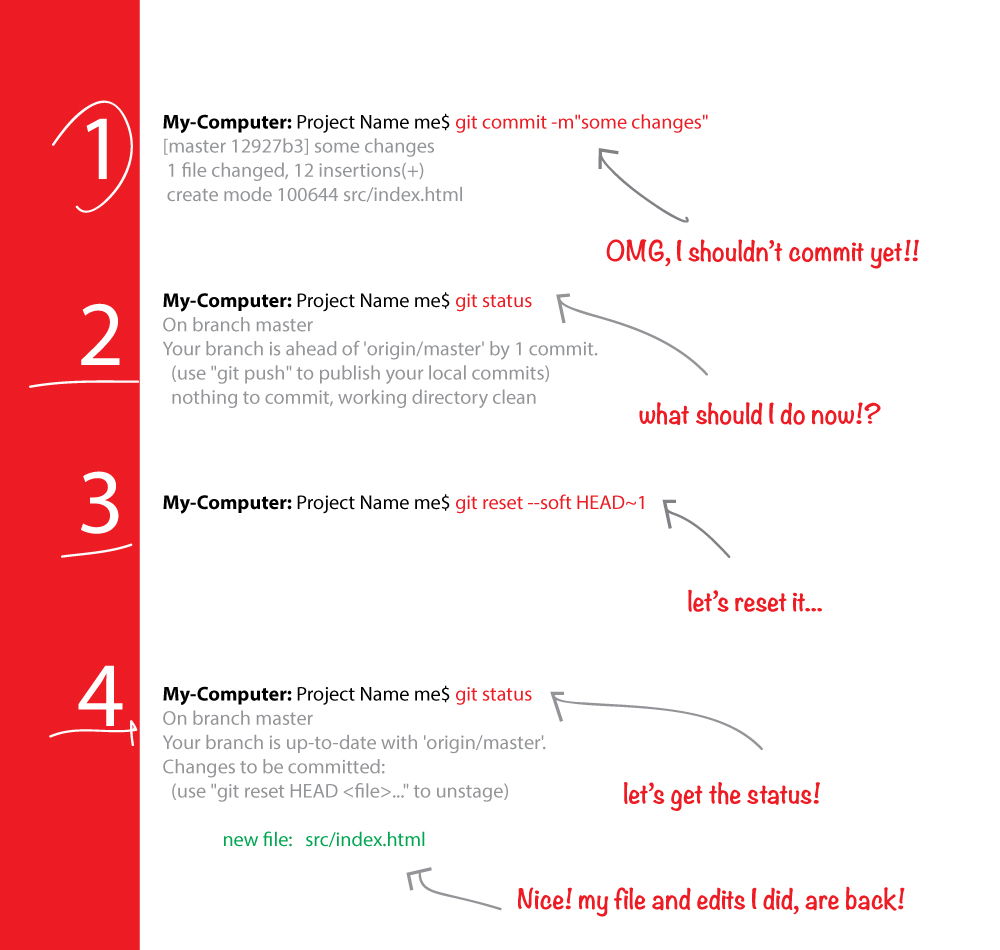
"Reset the working tree to the last commit"
git reset --hard HEAD^
"Clean unknown files from the working tree"
git clean
see - Git Quick Reference [1]
NOTE: This command will delete your previous commit, so use with caution! git reset --hard is safer.
First run:
git reflog
It will show you all the possible actions you have performed on your repository, for example, commit, merge, pull, etc.
Then do:
git reset --hard ActionIdFromRefLog
git reset --soft HEAD^ or git reset --soft HEAD~
This will undo the last commit.
Here --soft means reset into staging.
HEAD~ or HEAD^ means to move to commit before HEAD.
git commit --amend -m "message"
It will replace the last commit with the new commit.
Another way:
Checkout the branch you want to revert, then reset your local working copy back to the commit that you want to be the latest one on the remote server (everything after it will go bye-bye). To do this, in SourceTree I right-clicked on the and selected "Reset BRANCHNAME to this commit".
Then navigate to your repository's local directory and run this command:
git -c diff.mnemonicprefix=false -c core.quotepath=false push -v -f --tags REPOSITORY_NAME BRANCHNAME:BRANCHNAME
This will erase all commits after the current one in your local repository but only for that one branch.
Type git log and find the last commit hash code and then enter:
git reset <the previous co>
In my case I accidentally committed some files I did not want to. So I did the following and it worked:
git reset --soft HEAD^
git rm --cached [files you do not need]
git add [files you need]
git commit -c ORIG_HEAD
Verify the results with gitk or git log --stat
reset --soft or reset --hard?I am just adding two cents for @Kyralessa's answer:
If you are unsure what to use go for --soft (I used this convention to remember it --soft for safe).
If you choose --hard by mistake you will LOSE your changes as it wasn't before.
If you choose --soft by mistake you can achieve the same results of --hard by applying additional commands
git reset HEAD file.html
git checkout -- file.html
echo "some changes..." > file.html
git add file.html
git commit -m "wrong commit"

# I need to reset
git reset --hard HEAD~1 (cancel changes)
# OR
git reset --soft HEAD~1 # Back to staging
git reset HEAD file.html # back to working directory
git checkout -- file.html # cancel changes
Credits goes to @Kyralessa.
--soft VS --hard atlassian.com/git/tutorials/… - Eugen Konkov
--hard reset as they will be available in the ref log for 30 days git reflog. - Todd
Simple, run this in your command line:
git reset --soft HEAD~
There are many ways to do it:
Git command to undo the last commit/ previous commits:
Warning: Do Not use --hard if you do not know what you are doing. --hard is too dangerous, and it might delete your files.
Basic command to revert the commit in Git is:
$ git reset --hard <COMMIT -ID>
or
$ git reset --hard HEAD~<n>
COMMIT-ID: ID for the commit
n: is the number of last commits you want to revert
You can get the commit id as shown below:
$ **git log --oneline**

d81d3f1 function to subtract two numbers

be20eb8 function to add two numbers

bedgfgg function to multiply two numbers
where d81d3f1 and be20eb8 are commit id.
Now, let's see some cases:
Suppose you want to revert the last commit 'd81d3f1'. Here are two options:
$ git reset --hard d81d3f1
or
$ git reset --hard HEAD~1
Suppose you want to revert the commit 'be20eb8':
$ git reset --hard be20eb8
For more detailed information, you can refer to and try out some other commands too for resetting the head to a specified state:
$ git reset --help
git reset --hard HEAD~1 is too dangerous! This will not just 'cancel last commit', but will revert repo completely back to the previous commit. So you will LOOSE all changes committed in the last commit! - Arnis Juraga
git push -f <remote> HEAD@{1}:<branch> - Benny
git reset --soft HEAD~1
or if you do not remember exactly in which commit it is, you might use
git rm --cached <file>
The proper way of removing files from the repository history is using git filter-branch. That is,
git filter-branch --index-filter 'git rm --cached <file>' HEAD
But I recomnend you use this command with care. Read more at git-filter-branch(1) Manual Page [1].
[1] https://www.kernel.org/pub/software/scm/git/docs/git-filter-branch.htmlThere are two main scenarios
You haven't pushed the commit yet
If the problem was extra files you commited (and you don't want those on repository), you can remove them using git rm and then commiting with --amend
git rm <pathToFile>
You can also remove entire directories with -r, or even combine with other
Bash
[1] commands
git rm -r <pathToDirectory>
git rm $(find -name '*.class')
After removing the files, you can commit, with --amend option
git commit --amend -C HEAD # the -C option is to use the same commit message
This will rewrite your recent local commit removing the extra files, so, these files will never be sent on push and also will be removed from your local .git repository by GC.
You already pushed the commit
You can apply the same solution of the other scenario and then doing git push with the -f option, but it is not recommended since it overwrites the remote history with a divergent change (it can mess your repository).
Instead, you have to do the commit without --amend (remember this about -amend`: That option rewrites the history on the last commit).
Use SourceTree [1] (graphical tool for Git) to see your commits and tree. You can manually reset it directly by right clicking it.
[1] https://www.atlassian.com/software/sourcetree/overviewDestroy a commit and throw away any uncommitted changes
git reset --hard HEAD~1
Undo the commit, but keep your changes
git reset HEAD~1
Keep your files, and stage all changes back automatically
git reset --soft HEAD~1
Resurrect a commit you destroyed
git reflog # To find the sh
sh is a thing too... - mirekphd
git reset --soft HEAD~1 does the trick very well, then unstage files wrongly commited with git restore --staged <file> and re-commit. - Ben
Think we have code.txt file.
We make some changes on it and commit.
We can undo this commit in three ways, but first you should know what is the staged file...
An staged file is a file that ready to commit and if you run git status this file will be shown with green color and if this is not staged for commit will be shown with red color:

It means if you commit your change, your changes on this file is not saved.
You can add this file in your stage with git add code.txt and then commit your change:

Undo last commit:
Now if we want to just undo commit without any other changes, we can use
git reset --soft HEAD^

If we want to undo commit and its changes (THIS IS DANGEROUS, because your change will lost), we can use
git reset --hard HEAD^

And if we want to undo commit and remove changes from stage, we can use
git reset --mixed HEAD^ or in a short form git reset HEAD^

Usually, you want to undo a commit because you made a mistake and you want to fix it - essentially what the OP did when he asked the question. Really, you actually want to redo a commit.
Most of the answers here focus on the command line. While the command line is the best way to use Git when you're comfortable with it, its probably a bit alien to those coming from other version control systems to Git.
Here's how to do it using a GUI. If you have Git installed, you already have everything you need to follow these instructions.
NOTE: I will assume here that you realised the commit was wrong before you pushed it. If you don't know what pushing means, then you probably haven't pushed. Carry on with the instructions. If you have pushed the faulty commit, the least risky way is just to follow up the faulty commit with a new commit that fixes things, the way you would do it in a version control system that does not allow you to rewrite history.
That said, here's how to fix your most recent fault commit using a GUI:
git guiIf you want to revert the last commit but still want to keep the changes locally that were made in the commit, use this command:
git reset HEAD~1 --mixed
You can use:
git reset HEAD@{1}
This command will delete your wrong commit without a Git log.
Undo the Last Commit
There are tons of situations where you really want to undo that last commit into your code. E.g. because you'd like to restructure it extensively - or even discard it altogether!
In these cases, the "reset" command is your best friend:
$ git reset --soft HEAD~1
The above command (reset) will rewind your current HEAD branch to the specified revision. In our example above, we'd like to return to the one before the current revision - effectively making our last commit undone.
Note the --soft flag: this makes sure that the changes in undone revisions are preserved. After running the command, you'll find the changes as uncommitted local modifications in your working copy.
If you don't want to keep these changes, simply use the --hard flag. Be sure to only do this when you're sure you don't need these changes any more.
$ git reset --hard HEAD~1

Just undo the last commit:
git reset --soft HEAD~
Or undo the time before last time commit:
git reset --soft HEAD~2
Or undo any previous commit:
git reset --soft <commitID>
(you can get the commitID using git reflog)
When you undo a previous commit, remember to clean the workplace with
git clean
More details can be found in the docs: git-reset [1]
[1] http://git-scm.com/docs/git-resetIn my case I committed and pushed to the wrong branch, so what I wanted was to have all my changes back so I can commit them to a new correct branch, so I did this:
On the same branch that you committed and pushed, if you type "git status" you won't see anything new because you committed and pushed, now type:
git reset --soft HEAD~1
This will get all your changes(files) back in the stage area, now to get them back in the working directory(unstage) you just type:
git reset FILE
Where "File" is the file that you want to commit again. Now, this FILE should be in the working directory(unstaged) with all the changes that you did. Now you can change to whatever branch that you want and commit the changes in that branch. Of course, the initial branch that you committed is still there with all changes, but in my case that was ok, if it is not for you-you can look for ways to revert that commit in that branch.
Before answering let's add some background, explaining what is this HEAD.
First of all what is HEAD?HEAD is simply a reference to the current commit (latest) on the current branch.
There can only be a single HEAD at any given time. (excluding git worktree)
The content of HEAD is stored inside .git/HEAD and it contains the 40 bytes SHA-1 of the current commit.
detached HEADIf you are not on the latest commit - meaning that HEAD is pointing to a prior commit in history its called detached HEAD.

On the command line, it will look like this- SHA-1 instead of the branch name since the HEAD is not pointing to the tip of the current branch


git checkout
[1]git checkout <commit_id>
git checkout -b <new branch> <commit_id>
git checkout HEAD~X // x is the number of commits t go back
This will checkout new branch pointing to the desired commit.
This command will checkout to a given commit.
At this point, you can create a branch and start to work from this point on.
# Checkout a given commit.
# Doing so will result in a `detached HEAD` which mean that the `HEAD`
# is not pointing to the latest so you will need to checkout branch
# in order to be able to update the code.
git checkout <commit-id>

# create a new branch forked to the given commit
git checkout -b <branch name>
git reflog
[2]You can always use the reflog as well.
git reflog will display any change which updated the HEAD and checking out the desired reflog entry will set the HEAD back to this commit.
Every time the HEAD is modified there will be a new entry in the reflog
git reflog
git checkout HEAD@{...}
This will get you back to your desired commit

git reset --hard <commit_id>
[3]"Move" your HEAD back to the desired commit.
# This will destroy any local modifications.
# Don't do it if you have uncommitted work you want to keep.
git reset --hard 0d1d7fc32

# Alternatively, if there's work to keep:
git stash
git reset --hard 0d1d7fc32
git stash pop
# This saves the modifications, then reapplies that patch after resetting.
# You could get merge conflicts if you've modified things which were
# changed since the commit you reset to.
git rebase --no-autostash as well.
git revert <sha-1>
[5]"Undo" the given commit or commit range.
The reset command will "undo" any changes made in the given commit.
A new commit with the undo patch will be committed while the original commit will remain in the history as well.
# add new commit with the undo of the original one.
# the <sha-1> can be any commit(s) or commit range
git revert <sha-1>
This schema illustrates which command does what.
As you can see there reset && checkout modify the HEAD.

Undo the last commit:
git reset --soft HEAD^ or git reset --soft HEAD~
This will undo the last commit.
Here --soft means reset into staging.
HEAD~ or HEAD^ means to move to commit before HEAD.
Replace the last commit to new commit:
git commit --amend -m "message"
It will replace the last commit with the new commit.
If you are working with SourceTree [1], this will help you.
Right click on the commit then select "Reset (current branch)/master to this commit" and last select "Soft" reset.

To undo your local commit you use git reset <commit>. Also
that tutorial
[1] is very helpful to show you how it works.
Alternatively, you can use git revert <commit>:
reverting
[2] should be used when you want to add another commit that rolls back the changes (but keeps them in the project history).
Suppose you made a wrong commit locally and pushed it to a remote repository. You can undo the mess with these two commands:
First, we need to correct our local repository by going back to the commit that we desire:
git reset --hard <previous good commit id where you want the local repository to go>
Now we forcefully push this good commit on the remote repository by using this command:
git push --force-with-lease
The 'with-lease' version of the force option it will prevent accidental deletion of new commits you do not know about (i.e. coming from another source since your last pull).
VISUAL STUDIO USERS (2015, etc.)
If you cannot synchronise in Visual Studio as you are not allowed to push to a branch like "development" then as much as I tried, in Visual Studio NEITHER the REVERT NOR the RESET (hard or soft) would work.
Per the answer with TONS OF VOTES:
Use this at the command prompt of root of your project to nuke anything that will attempt to get pushed:
git reset --hard HEAD~1
Backup or zip your files just in case you don't wish to lose any work, etc...
Everybody comments in such a complicated manner.
If you want to remove the last commit from your branch, the simplest way to do it is:
git reset --hard HEAD~1
Now to actually push that change to get rid of your last commit, you have to
git push --force
And that's it. This will remove your last commit.
--hard`, but leave it with the default --soft` so we can remove and add stuff before the ``git push -f` - Maf
In speaking of Git-related commands in the previous answers, I would like to share my typical Git cycles with all readers which may helpful. Here is how I work with Git,
Cloning the first time from the remote server
git clone $project
Pulling from remote (when I don't have a pending local commit to push)
git pull
Adding a new local file1 into $to_be_committed_list (just imagine $to_be_committed_list means staged area)
git add $file1
Removing mistakenly added file2 from $to_be_committed_list (assume that file2 is added like step 3, which I didn't want)
git reset $file2
Committing file1 which is in $to_be_committed_list
git commit -m "commit message description"
Syncing local commit with remote repository before pushing
git pull --rebase
Resolving when conflict occurs prerequisite configure mergetool [1]
git mergetool #resolve merging here, also can manually merge
Adding conflict-resolved files, let's say file1:
git add $file1
Continuing my previous rebase command
git rebase --continue
Pushing ready and already synced last local commit
git push origin head:refs/for/$branch # branch = master, dev, etc.
In these cases, the "reset" command is your best friend:
git reset --soft HEAD~1
Reset will rewind your current HEAD branch to the specified revision. In our example above, we'd like to return to the one before the current revision - effectively making our last commit undone.
Note the --soft flag: this makes sure that the changes in undone revisions are preserved. After running the command, you'll find the changes as uncommitted local modifications in your working copy.
If you don't want to keep these changes, simply use the --hard flag. Be sure to only do this when you're sure you don't need these changes anymore.
git reset --hard HEAD~1
In order to get rid of (all the changes in) last commit, last 2 commits and last n commits:
git reset --hard HEAD~1
git reset --hard HEAD~2
...
git reset --hard HEAD~n
And, to get rid of anything after a specific commit:
git reset --hard <commit sha>
e.g.,
git reset --hard 0d12345
Be careful with the hard option: it deletes the local changes in your repo as well and reverts to the previous mentioned commit. You should only run this if you are sure you messed up in your last commit(s) and would like to go back in time.
As a side-note, about 7 letters of the commit hash is enough, but in bigger projects, you may need up to 12 letters for it to be unique. You can also use the entire commit SHA if you prefer.
The above commands work in GitHub for Windows as well.
Remove a wrong commit that is already pushed to Github
git push origin +(previous good commit id):(branch name)
Please specify the last good commit id you would like to reset back in Github.
For example. If latest commit id is wrong then specify the previous commit id in above git command with the branch name.
You can get previous commit id using git log
You need to do the easy and fast
git commit --amend
if it's a private branch or
git commit -m 'Replace .class files with .java files'
if it's a shared or public branch.
I got the commit ID from bitbucket and then did:
git checkout commitID .
Example:
git checkout 7991072 .
And it reverted it back up to that working copy of that commit.
Do as the following steps.
Step 1
Hit git log
From the list of log, find the last commit hash code and then enter:
Step 2
git reset <hash code>
Use this command
git checkout -b old-state 0d1d7fc32
In order to remove some files from a Git commit, use the “git reset” command with the “–soft” option and specify the commit before HEAD.
$ git reset --soft HEAD~1
When running this command, you will be presented with the files from the most recent commit (HEAD) and you will be able to commit them.
Now that your files are in the staging area, you can remove them (or unstage them) using the “git reset” command again.
$ git reset HEAD <file>
Note: this time, you are resetting from HEAD as you simply want to exclude files from your staging area
If you are simply not interested in this file any more, you can use the “git rm” command in order to delete the file from the index (also called the staging area).
$ git rm --cached <file>
When you are done with the modifications, you can simply commit your changes again with the “–amend” option.
$ git commit --amend
To verify that the files were correctly removed from the repository, you can run the “git ls-files” command and check that the file does not appear in the file (if it was a new one of course)
$ git ls-files

 <file1>
 <file2>
Since Git 2.23, there is a new way to remove files from commit, but you will have to make sure that you are using a Git version greater or equal than 2.23.
$ git --version
Git version 2.24.1
Note: Git 2.23 was released in August 2019 and you may not have this version already available on your computer.
To install newer versions of Git, you can check this tutorial. To remove files from commits, use the “git restore” command, specify the source using the “–source” option and the file to be removed from the repository.
For example, in order to remove the file named “myfile” from the HEAD, you would write the following command
$ git restore --source=HEAD^ --staged -- <file>
As an example, let’s pretend that you edited a file in your most recent commit on your “master” branch.
The file is correctly committed but you want to remove it from your Git repository.
To remove your file from the Git repository, you want first to restore it.
$ git restore --source=HEAD^ --staged  -- newfile

$ git status
Your branch is ahead of 'origin/master' by 1 commit. (use "git push" to publish your local commits)
Changes to be committed:
 (use "git restore --staged <file>..." to unstage)
    modified:   newfile
Changes not staged for commit:
 (use "git add <file>..." to update what will be committed)
 (use "git restore <file>..." to discard changes in working directory)
      modified:   newfile
As you can see, your file is back to the staging area.
From there, you have two choices, you can choose to edit your file in order to re-commit it again, or to simply delete it from your Git repository.
In this section, we are going to describe the steps in order to remove the file from your Git repository.
First, you need to unstage your file as you won’t be able to remove it if it is staged.
To unstage a file, use the “git reset” command and specify the HEAD as source.
$ git reset HEAD newfile
When your file is correctly unstaged, use the “git rm” command with the “–cached” option in order to remove this file from the Git index (this won’t delete the file on disk)
$ git rm --cached newfile
rm 'newfile'
Now if you check the repository status, you will be able to see that Git staged a deletion commit.
$ git status
Your branch is ahead of 'origin/master' by 1 commit. (use "git push" to publish your local commits)
Changes to be committed:
 (use "git restore --staged <file>..." to unstage)
    deleted:    newfile
Now that your file is staged, simply use the “git commit” with the “–amend” option in order to amend the most recent commit from your repository.
`$ git commit --amend

 [master 90f8bb1] Commit from HEAD
  Date: Fri Dec 20 03:29:50 2019 -0500
  1 file changed, 2 deletions(-)
  delete mode 100644 newfile
`As you can see, this won’t create a new commit but it will essentially modify the most recent commit in order to include your changes.
In some cases, you don’t want all the files to be staged again: you only one to modify one very specific file of your repository.
In order to remove a specific file from a Git commit, use the “git reset” command with the “–soft” option, specify the commit before HEAD and the file that you want to remove.
$ git reset HEAD^ -- <file>
When you are done with the modifications, your file will be back in the staging area.
First, you can choose to remove the file from the staging area by using the “git reset” command and specify that you want to reset from the HEAD.
$ git reset HEAD <file>
Note: it does not mean that you will lose the changes on this file, just that the file will be removed from the staging area.
If you want to completely remove the file from the index, you will have to use the “git rm” command with the “–cached” option.
$ git reset HEAD <file>
In order to make sure that your file was correctly removed from the staging area, use the “git ls-files” command to list files that belong to the index.
$ git ls-files
When you are completely done with your modifications, you can amend the commit you removed the files from by using the “git commit” command with the “–amend” option.
$ git commit --amend
git rm file` and git checkout file`? - Maf
git reset --soft HEAD~1
Reset will rewind your current HEAD branch to the specified revision.
Note the --soft flag: this makes sure that the changes in undone revisions are preserved. After running the command, you'll find the changes as uncommitted local modifications in your working copy.
If you don't want to keep these changes, simply use the --hard flag. Be sure to only do this when you're sure you don't need these changes anymore.
git reset --hard HEAD~1
Undoing Multiple Commits
git reset --hard 0ad5a7a6
Keep in mind, however, that using the reset command undoes all commits that came after the one you returned to:

OP: How do I undo the most recent local commits in Git? I accidentally committed the wrong files [as part of several commits].
There are several ways to "undo" as series of commits, depending on the outcome you're after. Considering the start case below, reset, rebase and filter-branch can all be used to rewrite your history.

How can C1 and C2 be undone to remove the tmp.log file from each commit?
In the examples below, absolute commit references are used, but it works the same way if you're more used to relative references (i.e. HEAD~2 or HEAD@{n}).
reset$ git reset --soft t56pi

With reset, a branch can be reset to a previous state, and any compounded changes be reverted to the Staging Area, from where any unwanted changes can then be discarded.
Note: As reset clusters all previous changes into the Staging Area, individual commit meta-data is lost. If this is not OK with you, chances are you're probably better off with rebase or filter-branch instead.
rebase$ git rebase --interactive t56pi

Using an interactive rebase each offending commit in the branch can be rewritten, allowing you to modify and discard unwanted changes. In the infographic above, the source tree on the right illustrates the state post rebase.
Step-by-step
t56pi)pick with edit. Save and close.HEAD, remove the unwanted files, and create brand new commits.Note: With rebase much of the commit meta data is kept, in contrast to the reset alternative above. This is most likely a preferred option, if you want to keep much of your history but only remove the unwanted files.
filter-branch$ git filter-branch --tree-filter 'rm -r ./tmp.log' t56pi..HEAD
Above command would filter out the file ./tmp.log from all commits in the desired range t56pi..HEAD (assuming our initial start case from above). See below illustration for clarity.

Similar to rebase, filter-branch can be used to wipe unwanted files from a subsection of a branch. Instead of manually editing each commit through the rebase process, filter-branch can automatically preformed the desired action on each commit.
Note: Just like rebase, filter-branch would preserve the rest of the commit meta-data, by only discarding the desired file. Notice how C1 and C2 have been rewritten, and the log-file discarded from each commit.
Just like anything related to software development, there are multiple ways to achieve the same (or similar) outcome for a give problem. You just need to pick the one most suitable for your particular case.
Do note that all three alternatives above rewrites the history completely. Unless you know exactly what you're doing and have good communication within your team - only rewrite commits that have not yet been published remotely!
Source: All examples above are borrowed from this blog [1].
[1] https://blog.git-init.com/You can always do a git checkout <SHA code> of the previous version and then commit again with the new code.
You can undo your Git commits in two ways:
First is you can use git revert, if you want to keep your commit history:
git revert HEAD~3
git revert <hashcode of commit>
Second is you can use git reset, which would delete all your commit history and bring your head to commit where you want it.
git reset <hashcode of commit>
git reset HEAD~3
You can also use the --hard keyword if any of it starts behaving otherwise. But, I would only recommend it until it's extremely necessary.
Here is site:
Oh shit, git!
[1].
Here are many recipes how to undo things in Git. Some of them:
Oh shit, I need to change the message on my last commit!
git commit --amend
# follow prompts to change the commit message
Oh shit, I accidentally committed something to master that should have been on a brand new branch!
# Create a new branch from the current state of master
git branch some-new-branch-name
# Remove the commit from the master branch
git reset HEAD~ --hard
git checkout some-new-branch-name
# Your commit lives in this branch now :)
For sake of completeness, I will give the one glaringly obvious method that was overlooked by the previous answers.
Since the commit was not pushed, the remote was unchanged, so:
This is sometimes necessary if your fancy Git client goes bye-bye (looking at you, egit).
Don't forget to re-commit your saved changes since the last push.
You can undo your commits from the local repository. Please follow the below scenario.
In the below image I check out the 'test' branch (using Git command git checkout -b test) as a local and check status (using Git command git status) of local branch that there is nothing to commit.

In the next image image you can see here I made a few changes in Filter1.txt and added that file to the staging area and then committed my changes with some message (using Git command git commit -m "Doing commit to test revert back").
"-m is for commit message"

In the next image you can see your commits log whatever you have made commits (using Git command git log).

So in the above image you can see the commit id with each commit and with your commit message now whatever commit you want to revert back or undo copy that commit id and hit the below Git command,
git revert {"paste your commit id"}. Example:
git revert 9ca304ed12b991f8251496b4ea452857b34353e7

I have reverted back my last commit. Now if you check your Git status, you can see the modified file which is Filter1.txt and yet to commit.

The simplest way to undo the last commit is
git reset HEAD^
This will bring the project state before you have made the commit.
I have found this [1] site which describes how to undo things that you have committed into the repository.
Some commands:
git commit --amend        # Change last commit
git reset HEAD~1 --soft   # Undo last commit
Reference: How to undo last commit in Git? [1]
If you have Git Extensions installed you can easily undo/revert any commit (you can download Git Extensions from here [2]).
Open Git Extensions, right click on the commit you want to revert then select "Revert commit".

A popup will be opened (see the screenshot below)

Select "Automatically create a commit" if you want to directly commit the reverted changes or if you want to manually commit the reverted changes keep the box un-selected and click on "Revert this commit" button.
[1] https://web.archive.org/web/20210414042516/http://www.coding-issues.com/2017/03/how-to-undo-or-revert-last-commits-in-git.htmlPrerequisite: When a modification to an existing file in your repository is made, this change is initially considered as unstaged. In order to commit the changes, it needs to be staged which means adding it to the index using
git add. During a commit operation, the files that are staged gets added to an index.
Let's take an example:
- A - B - C (master)
HEAD points to C and the index matches C.
git reset --soft B with the intention of removing the commit C and pointing the master/HEAD to B. git status you could see the files indexed in commit C as staged. git commit at this point will create a new commit with the same changes as Cgit reset --mixed B. git add and then commit as usual.git reset --hard BHope this comparison of flags that are available to use with git reset command will help someone to use them wisely. Refer these for further details
link1
[1] &
link2
[2]
Before answering, let's add some background, explaining what this HEAD is.
First of all what is HEAD?HEAD is simply a reference to the current commit (latest) on the current branch.
There can only be a single HEAD at any given time (excluding git worktree).
The content of HEAD is stored inside .git/HEAD and it contains the 40 bytes SHA-1 of the current commit.
detached HEADIf you are not on the latest commit - meaning that HEAD is pointing to a prior commit in history it's called detached HEAD.
On the command line, it will look like this - SHA-1 instead of the branch name since the HEAD is not pointing to the tip of the current branch:
git checkout
[1]git checkout <commit_id>
git checkout -b <new branch> <commit_id>
git checkout HEAD~X // x is the number of commits to go back
This will checkout the new branch pointing to the desired commit.
This command will checkout to a given commit.
At this point, you can create a branch and start to work from this point on.
# Checkout a given commit.
# Doing so will result in a `detached HEAD` which mean that the `HEAD`
# is not pointing to the latest so you will need to checkout branch
# in order to be able to update the code.
git checkout <commit-id>

# Create a new branch forked to the given commit
git checkout -b <branch name>
git reflog
[2]You can always use the reflog as well.
git reflog will display any change which updated the HEAD and checking out the desired reflog entry will set the HEAD back to this commit.
Every time the HEAD is modified there will be a new entry in the reflog
git reflog
git checkout HEAD@{...}
This will get you back to your desired commit
git reset --hard <commit_id>
[3]"Move" your HEAD back to the desired commit.
# This will destroy any local modifications.
# Don't do it if you have uncommitted work you want to keep.
git reset --hard 0d1d7fc32

# Alternatively, if there's work to keep:
git stash
git reset --hard 0d1d7fc32
git stash pop
# This saves the modifications, then reapplies that patch after resetting.
# You could get merge conflicts if you've modified things which were
# changed since the commit you reset to.
git rebase --no-autostash as well.
git revert <sha-1>
[5]"Undo" the given commit or commit range.
The reset command will "undo" any changes made in the given commit.
A new commit with the undo patch will be committed while the original commit will remain in history as well.
# Add a new commit with the undo of the original one.
# The <sha-1> can be any commit(s) or commit range
git revert <sha-1>
This schema illustrates which command does what.
As you can see there, reset && checkout modify the HEAD.
I validate an efficient method proposed, and here is a concrete example using it:
In case you want to permanently undo/cancel your last commit (and so on, one by one, as many as you want) three steps:
1: Get the id = SHA of the commit you want to arrive on with, of course
$ git log
2: Delete your previous commit with
$ git reset --hard 'your SHA'
3: Force the new local history upon your origin GitHub with the -f option (the last commit track will be erased from the GitHub history)
$ git push origin master -f
$ git log
Last commit to cancel
commit e305d21bdcdc51d623faec631ced72645cca9131 (HEAD -> master, origin/master, origin/HEAD)
Author: Christophe <blabla@bla.com>
Date:   Thu Jul 30 03:42:26 2020 +0200

U2_30 S45; updating files package.json & yarn.lock for GitHub Web Page from docs/CV_Portfolio...
Commit we want now on HEAD
commit 36212a48b0123456789e01a6c174103be9a11e61
Author: Christophe <blabla@bla.com>
Date:   Thu Jul 30 02:38:01 2020 +0200

First commit, new title
$ git reset --hard 36212a4

HEAD is now at 36212a4 First commit, new title
$ git log

commit 36212a48b0123456789e01a6c174103be9a11e61 (HEAD -> master)
Author: Christophe <blabla@bla.com>
Date:   Thu Jul 30 02:38:01 2020 +0200

    First commit, new title

$ git status

On branch master
Your branch is behind 'origin/master' by 1 commit, and can be fast-forwarded.
 (use "git pull" to update your local branch)

nothing to commit, working tree clean
$ git push origin master -f

Total 0 (delta 0), reused 0 (delta 0), pack-reused 0
To https://github.com/ GitUser bla bla/React-Apps.git
 + e305d21...36212a4 master -> master (forced update)
$ git status

On branch master
Your branch is up to date with 'origin/master'.

nothing to commit, working tree clean
HEAD:
Before reset commit we should know about HEAD... HEAD is nothing but your current state in your working directory. It is represented by a commit number.
Git commit:
Each change assigned under a commit which is represented by a unique tag. Commits can't be deleted. So if you want your last commit, you can simply dive into it using git reset.
You can dive into the last commit using two methods:
Method 1: (if you don't know the commit number, but want to move onto the very first)
git reset HEAD~1 # It will move your head to last commit
Method 2: (if you know the commit you simply reset onto your known commit)
git reset 0xab3 # Commit number
Note: if you want to know a recent commit try git log -p -1
Here is the graphical representation:

Before picking specific tools (commands), please pick what you need rather than blindly running commands.
Just in case you want to edit your last commit, there is a command.
Advantage: It allows you to correct the last commit's message as well as add more changes to it.
git commit --amend
Really want to undo the last commit (because of massive changes or you want to discard it all).
Advantage: The reset command will return to the one before the current revision, effectively making the last commit undone.
A. Soft Reset
Advantage: A soft flag. It guarantees the preservation of modifications made in undone revisions. The changes appear in your working copy as uncommitted local modifications once you run the command.
git reset --soft HEAD~1
B. Hard Reset
Advantage: If you don't want to keep these changes, simply use the --hard flag. Be sure to only do this when you're sure you don't need these changes anymore.
git reset --hard HEAD~1
Advantage:
This command will tell Git to advance the HEAD pointer back one commit. The files' modifications won't be impacted, though. Now, if you run git status, you ought to still be able to view the local file changes.
git reset HEAD~1
Use according to your needs.
Just use git reset --hard <last good SHA> to reset your changes and give new commit. You can also use git checkout -- <bad filename>.
If you would like to eliminate the wrong files you should do
git reset --soft <your_last_good_commit_hash_here>
Here, if you do git status, you will see the files in the staging area. You can select the wrong files and take them down from the staging area.
Like the following.
git reset wrongFile1 wrongFile2 wrongFile3
You can now just add the files that you need to push,
git add goodFile1 goodFile2
Commit them
git commit -v or git commit -am "Message"
And push
git push origin master
However, if you do not care about the changed files you can hard reset to previous good commit and push everything to the server.
By
git reset --hard <your_last_good_commit_hash_here>
git push origin master
If you already published your wrong files to the server, you can use the --force flag to push to the server and edit the history.
git push --force origin master
git reset --soft HEAD~1

git status
On branch master
Your branch is ahead of 'origin/master' by 1 commit.
(use "git push" to publish your local commits)Changes to be committed:
(use "git restore --staged ..." to unstage) new file: file1
git log --oneline --graph
- 90f8bb1 (HEAD -> master) Second commit \
- 7083e29 Initial repository commit \
To undo the last commit in Git but keep the changes in your working directory, you can use the following command:
git reset --soft HEAD~1
git reset: This command undoes commits.--soft: It undoes the commit but leaves the changes staged (ready for the next commit).HEAD~1: This specifies the last commit (one commit before HEAD).If you'd like the changes to stay in your working directory but not staged for commit, use:
git reset HEAD~1
git reset --mixed HEAD~1
After running any of these commands, you can:
git commit -m "new message".git reset --hard HEAD [commit] In case you want to reset and jump back to a specific commit. This is good when you want to reset 2 or more commits. You can also check and bookmark this free git cheat-sheet here: git-cheat-sheet.jrguazon.com - doppelgunner
In IntelliJ IDEA you can just open the Git repository log by pressing Alt+9, right mouse button click at some tag from the commits list, and select: "Reset Current Branch to Here...".
Rebasing and dropping commits are the best when you want to keep the history clean useful when proposing patches to a public branch etc.
If you have to drop the topmost commit then the following one-liner helps
git rebase --onto HEAD~1 HEAD
But if you want to drop 1 of many commits you did say
a -> b -> c -> d -> master
and you want to drop commit 'c'
git rebase --onto b c
This will make 'b' as the new base of 'd' eliminating 'c'
What I do each time I need to undo a commit/commits are:
git reset HEAD~<n> // the number of last commits I need to undo
git status // optional. All files are now in red (unstaged).
Now, I can add & commit just the files that I need:
git add <file names> & git commit -m "message" -m "details"git checkout <filename>git push origin <branch name> -f // use -f to force the push.
Assuming you're working in Visual Studio, if you go in to your branch history and look at all of your commits, simply select the event prior to the commit you want to undo, right-click it, and select Revert. Easy as that.
I wrote about this ages ago after having these same problems myself:
How to delete/revert a Git commit [1]
Basically you just need to do:
git log, get the first seven characters of the SHA hash, and then do a git revert <sha> followed by git push --force.
You can also revert this by using the Git revert command as follows: git revert <sha> -m -1 and then git push.
To undo the last local commit, without throwing away its changes, I have this handy alias in ~/.gitconfig
[alias]
  undo = reset --soft HEAD^
Then I simply use git undo which is super-easy to remember.
Find the last commit hash code by seeing the log by:
git log
Then
git reset <the previous co>
Try this, hard reset to previous commit where those files were not added, then:
git reset --hard <commit_hash>
Make sure you have a backup of your changes just in case, as it's a hard reset, which means they'll be lost (unless you stashed earlier)
If you simply want to trash all your local changes/commits and make your local branch look like the origin branch you started from...
git reset --hard origin/branch-name
Replace your local version, including your changes with the server version. These two lines of code will force Git to pull and overwrite local.
Open a command prompt and navigate to the Git project root. If you use Visual Studio, click on Team, Sync and click on "Open Command Prompt" (see the image) below.

Once in the Cmd prompt, go ahead with the following two instructions.
git fetch --all
Then you do
git reset --hard origin/master
This will overwrite the existing local version with the one on the Git server.
You'll encounter this problem:
$ git reset HEAD~
fatal: ambiguous argument 'HEAD~': unknown revision or path not in the working tree.
Use '--' to separate paths from revisions, like this:
'git <command> [<revision>...] -- [<file>...]'
The error occurs because if the last commit is the initial commit (or no parents) of the repository, there is no HEAD~.
If you want to reset the only commit on "master" branch
$ git update-ref -d HEAD
$ git rm --cached -r .
You can use git revert <commit-id>.
And for getting the commit ID, just use git log.
If you have made local commits that you don't like, and they have not been pushed yet you can reset things back to a previous good commit. It will be as if the bad commits never happened. Here's how:
In your terminal (Terminal, Git Bash, or Windows Command Prompt), navigate to the folder for your Git repo. Run git status and make sure you have a clean working tree. Each commit has a unique hash (which looks something like 2f5451f). You need to find the hash for the last good commit (the one you want to revert back to). Here are two places you can see the hash for commits: In the commit history on GitHub or Bitbucket or website. In your terminal (Terminal, Git Bash, or Windows Command Prompt) run the command git log --online Once you know the hash for the last good commit (the one you want to revert back to), run the following command (replacing 2f5451f with your commit's hash):
git reset 2f5451f
git reset --hard 2f5451f
NOTE: If you do git reset the commits will be removed, but the changes will appear as uncommitted, giving you access to the code. This is the safest option because maybe you wanted some of that code and you can now make changes and new commits that are good. Often though you'll want to undo the commits and throw away the code, which is what git reset --hard does.
Generally I don't want to undo a bunch of commits, but rather edit an earlier commit to how I wish I had committed it in the first place.
I found myself fixing a past commit frequently enough that I wrote a script for it.
Here's the workflow:
git commit-edit <commit-hash>
This will drop you at the commit you want to edit.
The changes of the commit will be unstaged, ready to be staged as you wish it was the first time.
Fix and stage the commit as you wish it had been in the first place.
(You may want to use git stash save --keep-index to squirrel away any files you're not committing)
Redo the commit with --amend, eg:
git commit --amend
Complete the rebase:
git rebase --continue
Call this following git-commit-edit and put it in your $PATH:
#!/bin/bash

# Do an automatic git rebase --interactive, editing the specified commit
# Revert the index and working tree to the point before the commit was staged
# https://stackoverflow.com/a/52324605/5353461

set -euo pipefail

script_name=${0##*/}

warn () { printf '%s: %s\n' "$script_name" "$*" >&2; }
die () { warn "$@"; exit 1; }

[[ $# -ge 2 ]] && die "Expected single commit to edit. Defaults to HEAD~"

# Default to editing the parent of the most recent commit
# The most recent commit can be edited with `git commit --amend`
commit=$(git rev-parse --short "${1:-HEAD~}")

# Be able to show what commit we're editing to the user
if git config --get alias.print-commit-1 &>/dev/null; then
  message=$(git print-commit-1 "$commit")
else
  message=$(git log -1 --format='%h %s' "$commit")
fi

if [[ $OSTYPE =~ ^darwin ]]; then
  sed_inplace=(sed -Ei "")
else
  sed_inplace=(sed -Ei)
fi

export GIT_SEQUENCE_EDITOR="${sed_inplace[*]} "' "s/^pick ('"$commit"' .*)/edit \\1/"'
git rebase --quiet --interactive --autostash --autosquash "$commit"~
git reset --quiet @~ "$(git rev-parse --show-toplevel)"  # Reset the cache of the toplevel directory to the previous commit
git commit --quiet --amend --no-edit --allow-empty  #  Commit an empty commit so that that cache diffs are un-reversed

echo
echo "Editing commit: $message" >&2
echo
$ git commit -m 'Initial commit'
$ git add forgotten_file
$ git commit --amend
It’s important to understand that when you’re amending your last commit, you’re not so much fixing it as replacing it entirely with a new, improved commit that pushes the old commit out of the way and puts the new commit in its place. Effectively, it’s as if the previous commit never happened, and it won’t show up in your repository history.
The obvious value to amending commits is to make minor improvements to your last commit, without cluttering your repository history with commit messages of the form, “Oops, forgot to add a file” or “Darn, fixing a typo in last commit”.
2.4 Git Basics - Undoing Things [1]
[1] https://git-scm.com/book/en/v2/Git-Basics-Undoing-Thingsgit reset --soft HEAD~1
Soft: This will remove the commit from local only and keep the changes done in files as it is.
    git reset --hard HEAD~1
    git push origin master
Hard: This will remove that commit from local and remote and remove changes done in files.
I usually first find the commit hash of my recent commit:
git log
It looks like this: commit {long_hash}
Copy this long_hash and reset to it (go back to same files/state it was on that commit):
git reset --hard {insert long_hash without braces}
Visual Studio Code makes this very easy.

git push --delete (branch_name) //this will be removing the public version of your branch

git push origin (branch_name) //This will add the previous version back
git reset HEAD@{n} will reset your last n actions.
For reset, for the last action, use git reset HEAD@{1}.
If the repository has been committed locally and not yet pushed to the server, another crude/layman way of solving it would be:
You can use the git reset unwanted_file command with the file you don't want to stage. By using this command, we can move the changed file from the staging area to the working directory.
How can I undo commits in Git locally and remotely? [1]
[1] https://codeburst.io/how-to-undo-commits-in-git-locally-remotely-10078152c239I'd suggest using the VSCode editor; nowadays, it's quite straightforward to undo committed or unfinished code changes, even if they were accidentally committed.

Please never use this command for delete commit, **This command will remove your all changes and commit. **
git reset --hard HEAD~1
If any incident your changes removed, use these steps:- git reflog
It will appear like this: HEAD@{1}: reset: moving to HEAD~1 HEAD@{2}: commit: your previous commit message
you can recover it using: git reset --hard
OTHERWISE for back your commit Always use --soft command:-
git reset --soft HEAD~1
or
use git reset HEAD~1 // Undo the commit, but keep your changes
git reset --soft HEAD~1 works - raza9798
IN CASE IF YOU WANT TO REVET TO A LAST COMMIT AND REMOVE THE LOG HISTORY AS WELL
Use below command lets say you want to go to previous commit which has commitID SHA - 71e2e57458bde883a37b332035f784c6653ec509 the you can point to this commit it will not display any log message after this commit and all history will be erased after that.
git push origin +71e2e57458bde883a37b332035f784c6653ec509^:master
There are two way to undo most recent local commits..
01. git reset --hard HEAD~1
02.git reset --hard <commit-1-id>
Both method can use for reset second, third ... commits as below
01. git reset --hard HEAD~2
02.git reset --hard <commit-2-id>

01. git reset --hard HEAD~3
02.git reset --hard <commit-3-id>
.... ....... n so on.
You can use github desktop. After adding a commit it shows a popup to undo a commit. It is very easy to undo a latest commit from it
Another solution:
If we want to achieve with interactive mode using git rebase command: Run below command
git rebase -i HEAD~2
Note: Here, Number 2 indicates N last commits we want to see it on interactive prompt.
Then interactive window will open in editor. We can edit and save file.
pick 31de0dc6387 First commit message
pick e98b2fc43d3 Second commit message
# Rebase d2b363648d3..e98b2fc43d3 onto d2b363648d3 (2 commands)
#
# Commands:
# p, pick <commit> = use commit
# r, reword <commit> = use commit, but edit the commit message
# e, edit <commit> = use commit, but stop for amending
# s, squash <commit> = use commit, but meld into previous commit
# f, fixup [-C | -c] <commit> = like "squash" but keep only the previous
#                    commit's log message, unless -C is used, in which case
#                    keep only this commit's message; -c is same as -C but
#                    opens the editor
# x, exec <command> = run command (the rest of the line) using shell
# b, break = stop here (continue rebase later with 'git rebase --continue')
# d, drop <commit> = remove commit
# l, label <label> = label current HEAD with a name
# t, reset <label> = reset HEAD to a label
# m, merge [-C <commit> | -c <commit>] <label> [# <oneline>]
There are various options, we can pick only those commits which we want, We can squash all commits into single commit or modify commit messages. Also, we can change the order of commits.
To undo changes we can remove the below line from editor and save file.
pick e98b2fc43d3 Second commit message
After removing second commit id:
pick 31de0dc6387 First commit message
# Rebase d2b363648d3..e98b2fc43d3 onto d2b363648d3 (2 commands)
#
# Commands:
# p, pick <commit> = use commit
# r, reword <commit> = use commit, but edit the commit message
# e, edit <commit> = use commit, but stop for amending
# s, squash <commit> = use commit, but meld into previous commit
# f, fixup [-C | -c] <commit> = like "squash" but keep only the previous
#                    commit's log message, unless -C is used, in which case
#                    keep only this commit's message; -c is same as -C but
#                    opens the editor
# x, exec <command> = run command (the rest of the line) using shell
# b, break = stop here (continue rebase later with 'git rebase --continue')
# d, drop <commit> = remove commit
# l, label <label> = label current HEAD with a name
# t, reset <label> = reset HEAD to a label
# m, merge [-C <commit> | -c <commit>] <label> [# <oneline>]
Once you make the file change then save file and run below command
git rebase --continue
You can verify your changes with git log command which will give you commits history.
Now, you can push your changes.
git push origin <branch>
I share with you my approaches that I try to fix the problems
If we modify the last commit,t I mean message or content, before pushing, you can use
git commit --amend
If we undo the last commit, keep all changes staged
git reset --soft HEAD~1
If we undo the last commit, keep the changes but unstage them
git reset --mixed HEAD~1
Fully undo last commit and discard all changes (dangerous!)
git reset --hard HEAD~1
Safely undo a pushed commit by creating a new one
# type `git log` to get any specifit commit hash
git revert <commit>
View recent HEAD history and recover lost commits.
git reflog
Temporarily go back to a lost commit (after reflog).
git checkout <commit>
Restore repo state to a specific previous commit (be cautious!).
git reset --hard <commit>
Maybe someone wants to use plumbing git commands for that. You can use
git update-ref
[1]
First you have to know the hash of the previous commit (I will assume that you are in the branch main). You can use
git rev-parse
[2] for that.
$ git rev-parse main^
6bffe1cb1ed66a052a5a3224d1a778a64f6c357f
Note that you can use main^, main~, main~1, main^1, to get the first parent commit. More about differences between ^ and ~ in the manual
gitrevisions(7)
[3].
Then you have to update the branch main to points to the previous commit
$ git update-ref refs/heads/main 6bffe1cb1ed66a052a5a3224d1a778a64f6c357f
You can do that in one command
$ git update-ref refs/heads/main main^
Optionally, you can add the reason of the change to view the reason in git reflog.
$ git update-ref -m "Undo an accidental commit" refs/heads/main main^
If main is your current branch, then HEAD is a symbolic reference to refs/heads/main. So you can use
$ git update-ref HEAD HEAD^
If you want to delete the very first commit. You can simply delete the file .git/refs/heads/main (and the logs .git/logs/refs/head/main) or run the following command
git update-ref -d refs/heads/main
Here is the way, that wasn't mentioned yet:
git branch --show-current
git update-ref HEAD HEAD~1
git stash
git update-ref HEAD HEAD~1
git stash pop
git diffdoes not work afterwards despite there has been a change. The Git Status shows the file name of the changed file and mentions this: (use "git restore --staged <file>..." to unstage) - Franz Holzinger
I wanted to Remove last commit from my remote branch
Step 1 (get last 3 logs)
git log --oneline
Output:
8c9c4bd6 (HEAD -> TestReport, origin/TestReport) Update with private packages
a13ce7ae Fix code
974661ab Added scripts to generate to genrate test report
Step 2 (reset last commit)
git reset --hard a13ce7ae
Step 3 (check last 3 logs again)
git log --oneline
Output:
a13ce7ae (HEAD -> TestReport, origin/TestReport) Fix code
974661ab Added scripts to generate to genrate test report
Step 4 (push hard to remote branch)
git push -f

git undocommand to undo the most recent commit. I use it all of the time when I just committed something (and haven't pushed yet) and need to add an unstaged file or change the commit comment. - Dr. Mike Hoppergit reset --mixedis the default action forgit reset, you should ponder upon the reason for this, thus you will have a clear expectation on codebase management before digging into git usage. - tinystonectrl+shift+G+G, then click on the three dots -> Commits -> Undo last commit. - Hauklandsource controlpanel >... (three dots)>commit>undo last commitThis will revert your last commit in VS code. - extinctsiongit branchand also check git status withgit status, after that make above changes accordingly. Because, we need to verify the branch and it's status. - Developer Nilesh